
MCP
Use Veck inside your AI chat. Connect once, then ask Cursor, Claude, or ChatGPT about companies, investors, and the people you track.
Overview
MCP is a standard that lets AI assistants use outside tools. For you it means one thing: connect Veck once, and your chat can search Veck and read your Radar on its own — you just ask in plain English.
After connecting, your assistant can:
- Find companies and investors — by stage, location, source, or a plain description.
- Give you a morning brief on the people you track in Radar.
- Add a founder to Radar from a LinkedIn or X link.
It works with your existing Veck account and plan. Veck does not see or store your chat — only the requests your assistant sends.
Setup
It takes about two minutes. Pick your app below, follow the steps, and sign in with your Veck account when the app asks. No keys or tokens to copy.
The only thing you will need is this address:
Veck server address
url
https://mcp.theveck.com/Connect your app
Connecting to Cursor
Desktop app · about 2 minutes
Cursor keeps its connections in a small settings file. You will paste a few lines into it, then sign in with your Veck account.
Open Customize in the left sidebar.
Switch to the MCPs tab.
Click + New.
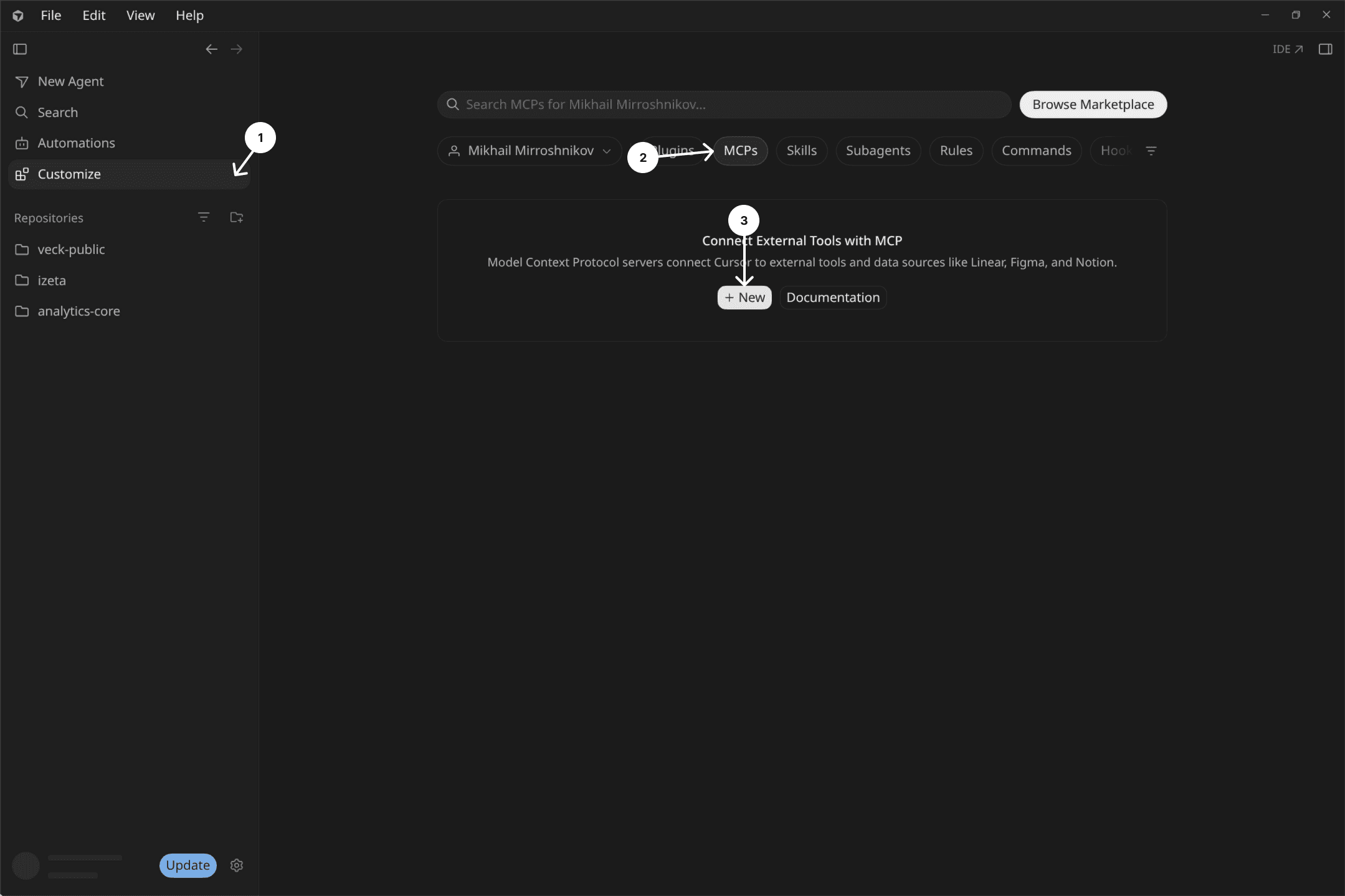
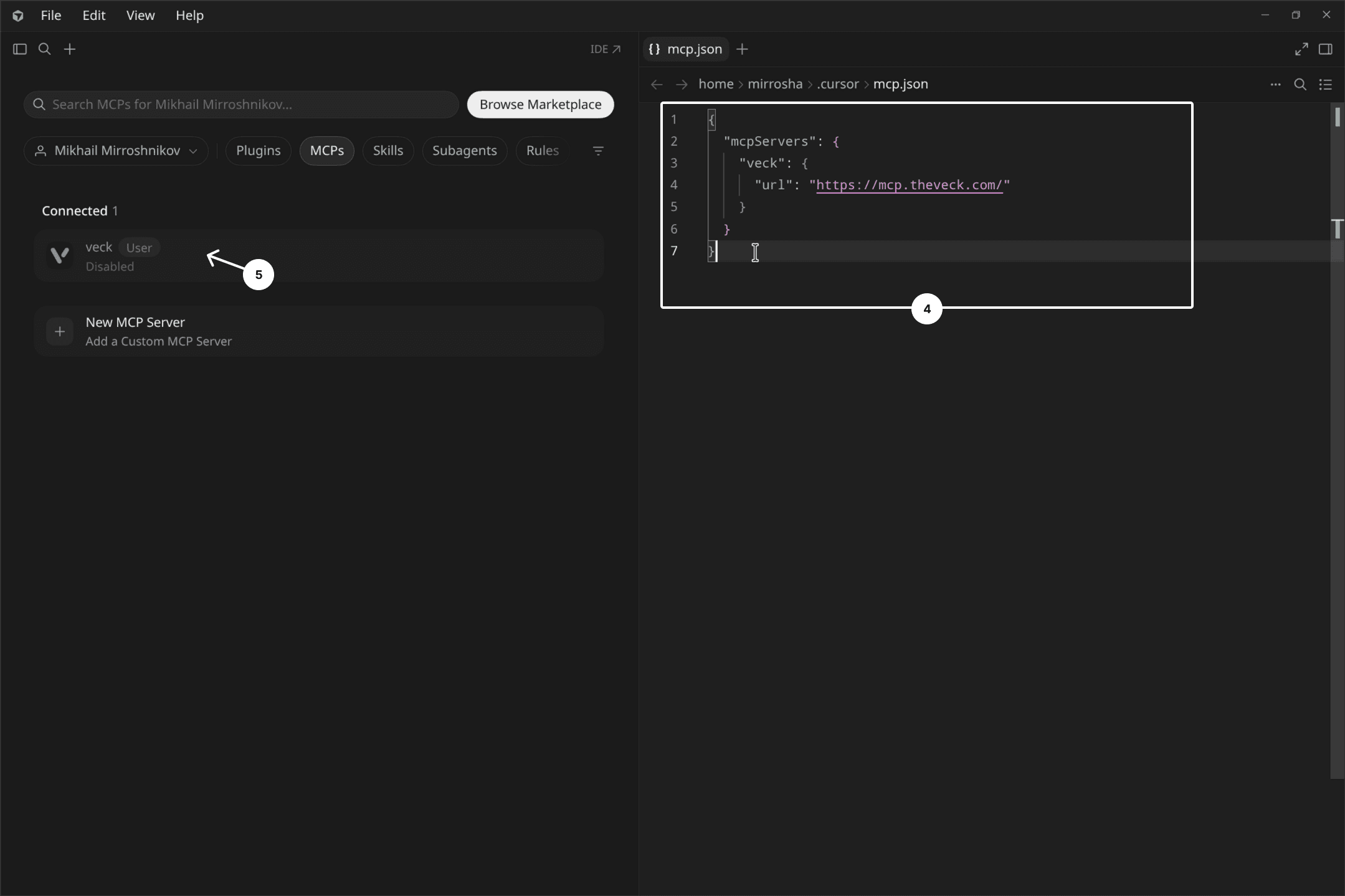
Cursor opens its settings file. Paste this into it and save:
~/.cursor/mcp.json
json
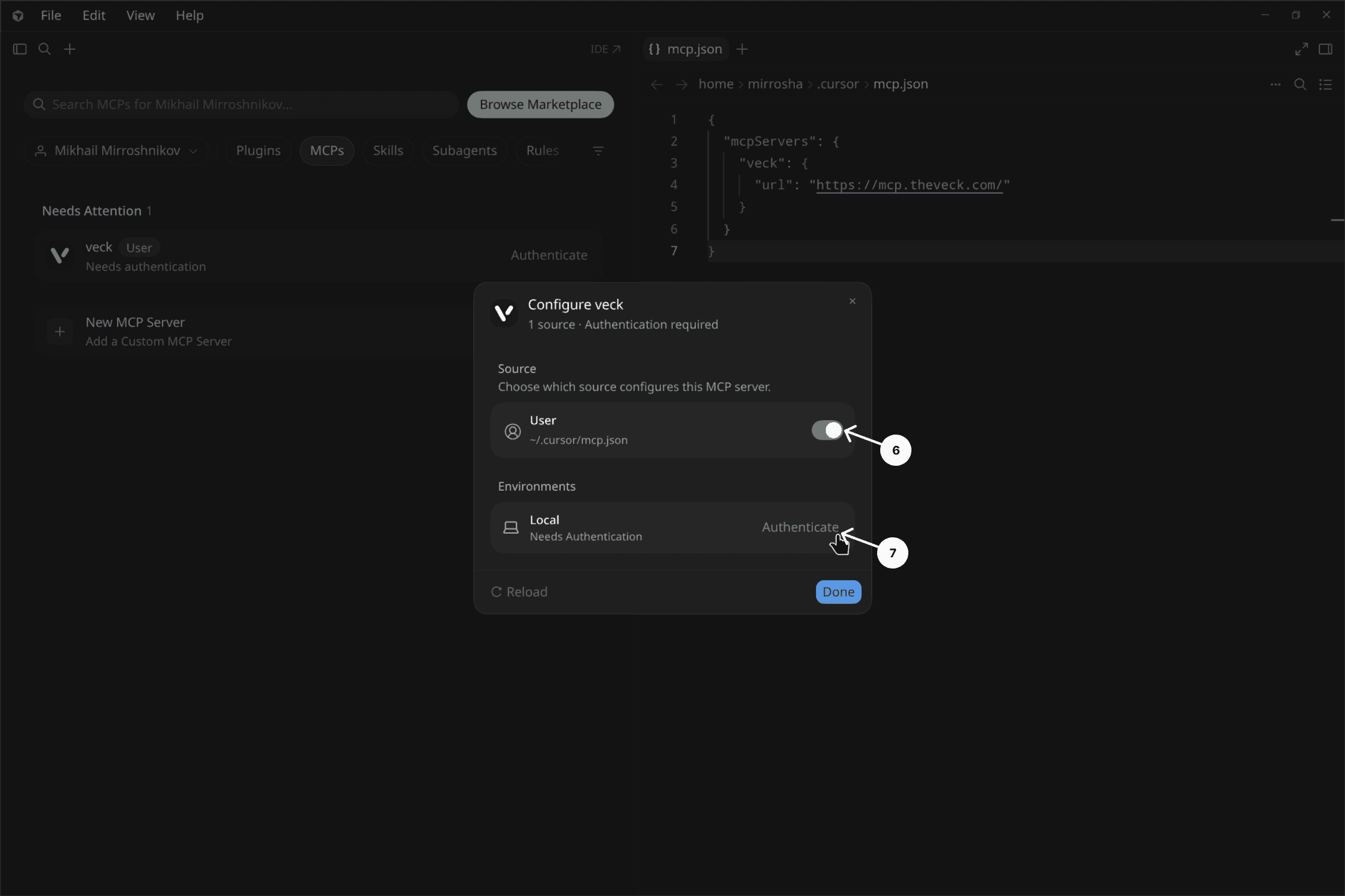
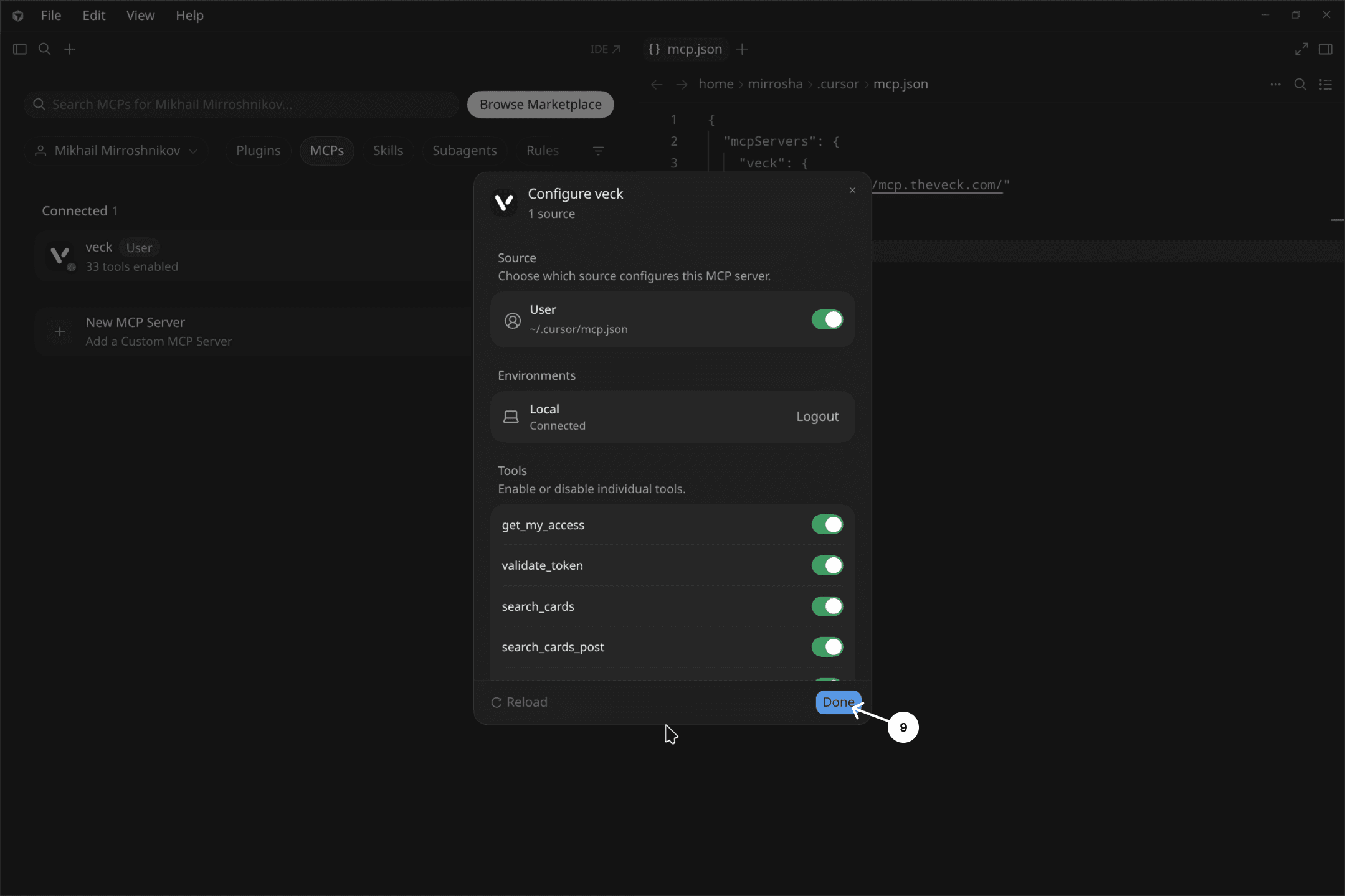
{ "mcpServers": { "veck": { "url": "https://mcp.theveck.com/" } } }Click veck in the list on the left. It says Disabled for now — that is fine.
Turn on the User switch.
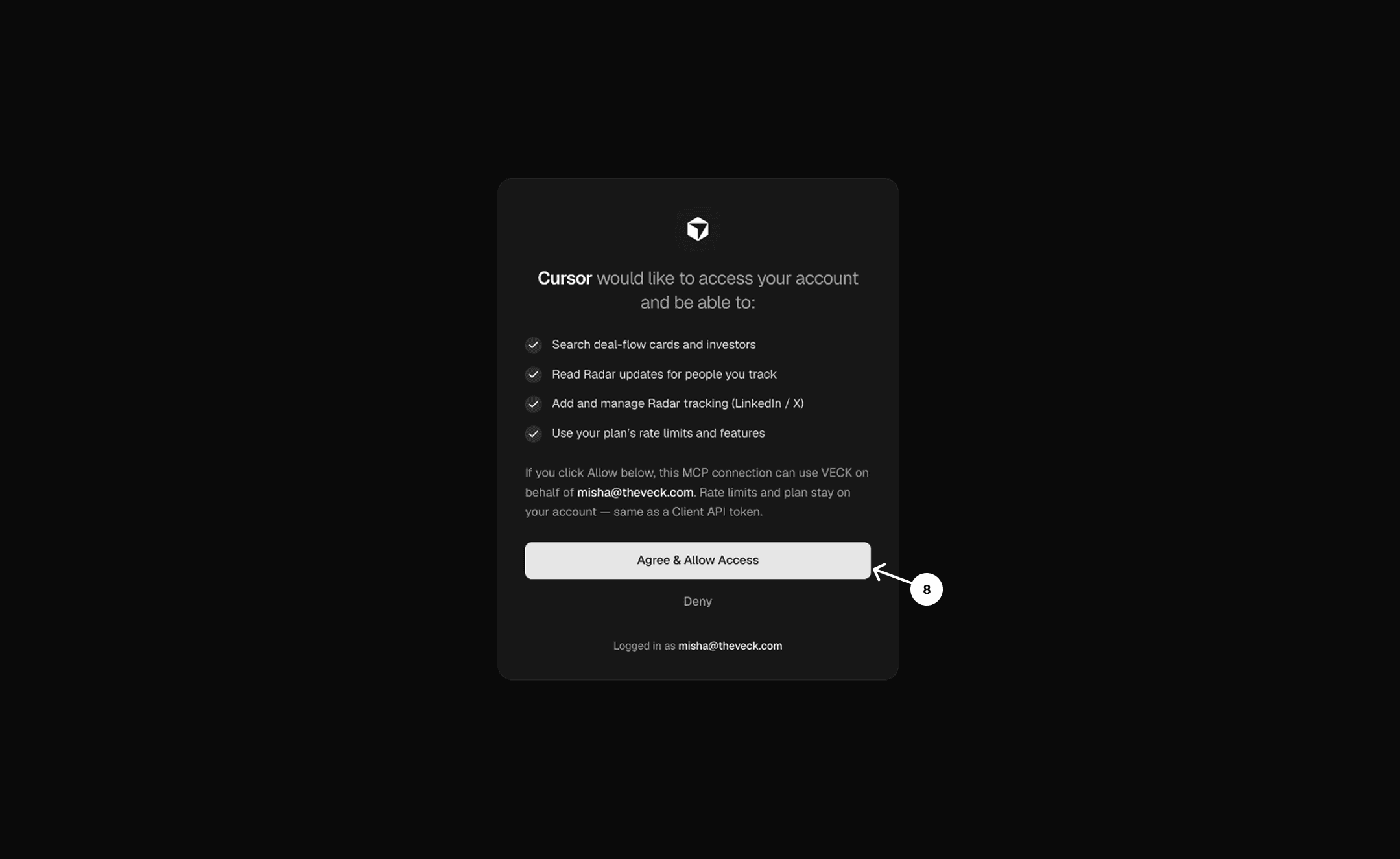
Click Authenticate. A browser tab opens.
Sign in to Veck if needed and click Agree & Allow Access.
Back in Cursor it now says Connected. Click Done.
Check it works
Start a new chat and ask. The assistant should reply with your plan and what it can do.
What can I do with Veck here? Show my plan and limits.
What to ask
A few starting points. Copy one into your chat or say it your own way — the assistant figures out which Veck data to use.
Who did YC founders interact with today?
Which founders did Elad Gil or Nat Friedman follow this week?
Which angels recently interacted with stealth AI founders?
Who did the founders of Stripe, Vercel, or Rippling follow this week?
Show stealth founders interacting with Benchmark or Greylock this month.
Find pre-seed AI startups interacting with Khosla Ventures, Bessemer, or General Catalyst.
Find European founders with new interactions from Index, Point Nine, or Seedcamp.
Which startups attracted interactions from three or more funds this week?
Find engineers who left OpenAI in the last 30 days.
Find Palantir alumni who started something new this month.
Show ex-Anthropic founders building in stealth and interacting with angels.
Which YC startups had their first interaction with Founders Fund or Lux Capital this week?
Tools reference
Veck MCP is a thin layer over the Client API. Your assistant discovers tools automatically from the server; this page lists what exists and when to use it. Response field shapes, status codes, and curl examples live in the API docs — MCP returns the same underlying data.
How it works
- Endpoint:
https://mcp.theveck.com/— Cursor, Claude, and ChatGPT use OAuth sign-in; other hosts may use a dashboard API token. - Call
get_my_accessonce at the start of a session to learn plan, limits, and which sections you can use. - Same rate limits and account gates as the REST API (free lifetime quota / paid daily).
- Raw LinkedIn profile tools appear only when that capability is enabled on the account; otherwise the assistant falls back to cards and Radar.
Start and reference
| Tool | What it does |
|---|---|
get_my_access | Start here once per session — plan, rate limits, allowed sections, and hints. |
validate_token | Raw capabilities payload. Prefer get_my_access for a readable summary. |
get_reference_data | Slugs for stages, rounds, categories, source_types, folders, and similar filters. |
get_api_catalog | Public API version catalog and endpoint list. |
Deal flow — companies and investors
| Tool | What it does |
|---|---|
search_cards | Search and filter company cards. Use view=compact for discovery; get_card for full detail. |
search_cards_post | Same search with JSON-array filters (POST). |
get_card | Full card by slug, including founder linkedin_profile when present. |
list_card_interactions | Signal / interaction history for a card. |
search_participants | Search investors, funds, and people. |
get_participants | One participant by slug, or a batch (up to 100). |
Radar — people you track
Read and simple workflows (typical chat use):
| Tool | What it does |
|---|---|
get_radar_quota | Tracking quota and usage. |
list_radar_updates | Feed of profile changes for people you follow. |
radar_person_updates | Updates for one person by LinkedIn/X URL or username. |
list_radar_connections | People already on Radar. |
get_radar_connection | One connection profile plus career / activity detail. |
get_radar_updates_meta | Metadata for the updates feed (filters / facets). |
radar_lookup_person | Check whether a LinkedIn/X profile is already known to Radar. |
radar_add_person | Add a person to Radar from a LinkedIn or X URL. |
Advanced write tools (applications and bulk):
| Tool | What it does |
|---|---|
create_radar_application | Create a tracking application (advanced). |
list_radar_applications / get_radar_applications_index | List applications and status. |
retry_radar_application | Retry a failed application init. |
set_radar_*_tracking / bulk_* / delete_* | Enable, disable, or remove tracking — use sparingly from chat. |
LinkedIn profiles (account-gated)
These tools are hidden unless your VECK manager enables Raw Data / LinkedIn profiles. Without them, use search_cards (e.g. source_types=linkedin) and get_card.
| Tool | What it does |
|---|---|
search_linkedin_profiles | Search the raw LinkedIn discovery pool (permission required). |
get_linkedin_profile | Fetch one LinkedIn profile by ID (permission required). |
Tips for efficient use
- Prefer
search_cardswithview=compactand limit 10–15, thenget_cardonly for shortlisted companies. - Date filters use
YYYY-MM-DD. Filter slugs come fromget_reference_data. - On
429, stop and explain the quota — do not retry in a loop. Free plans have a lifetime total; paid plans typically reset daily (UTC). - If semantic search returns unavailable, the server may fall back to normal search; ask for a shorter list if answers are too long.
Need HTTP paths, auth headers, or full JSON schemas? See the REST API documentation.
FAQ
No. In Cursor, Claude, and ChatGPT you just sign in with your Veck account when the app asks. Keys are only needed for other apps — see Other apps.
Cursor, Claude (web and desktop), and ChatGPT connect with a simple sign-in. For anything else — Windsurf, Zed, VS Code, your own agent — write to misha@theveck.com and we will enable it, or connect with a key as described in Other apps.
No. It uses the same plan and limits as your Veck account. Nothing to buy or upgrade to get started.
Check that Veck is turned on in your app’s connector settings, the address is https://mcp.theveck.com/, and you finished the sign-in. Restart the app, start a new chat and ask again.
Your sign-in expired. Disconnect Veck in your app’s connector settings, connect again and sign in. Your Veck data is not affected.
Ask for a short list first (10–15 companies) and details only on the ones you like. If you see a “limit reached” message, wait — free plans have a fixed quota, paid plans reset every night (UTC).
Yes — useful for apps without sign-in or for automated agents. Put your Veck API key in the server settings like this:
Server settings with a key
json
{
  "mcpServers": {
    "veck": {
      "url": "https://mcp.theveck.com/",
      "headers": {
        "Authorization": "Bearer YOUR_TOKEN"
      }
    }
  }
}
Limits stay on your Veck account either way.
Building your own integration? See the REST API. Want Veck data in your CRM? See connectors.